In today's fast-moving clinical environment,queue management in healthcare is not just about calling the next patient. It's about optimizing consultation flow, reducing congestion, and ensuring seamless coordination between admin staff and doctors.
That's exactly where FelixaTouch Live Queue Management transforms your daily operations.
What is Live Queue Management in FelixaTouch?
FelixaTouch enables clinics and healthcare centers to move patients into a real-time live queue once their physical presence is confirmed. This ensures:
- Controlled consultation flow
- Reduced waiting time confusion
- Transparent patient status tracking
- Optimized doctor productivity
How Queue Management Works in FelixaTouch
Step 1: Access Today's Appointments
Once an appointment is booked and the day appears on the dashboard :
Steps
- 1
Click on the Doctor's in-duty today — time slot / schedule (Admin / Front Desk/ Doctor)
- 2
This opens the Appointments List page and Pending Queue. [As shown in screenshot 2. below]
- 3
Appointments for that slot appear in the right-side Appointment list.
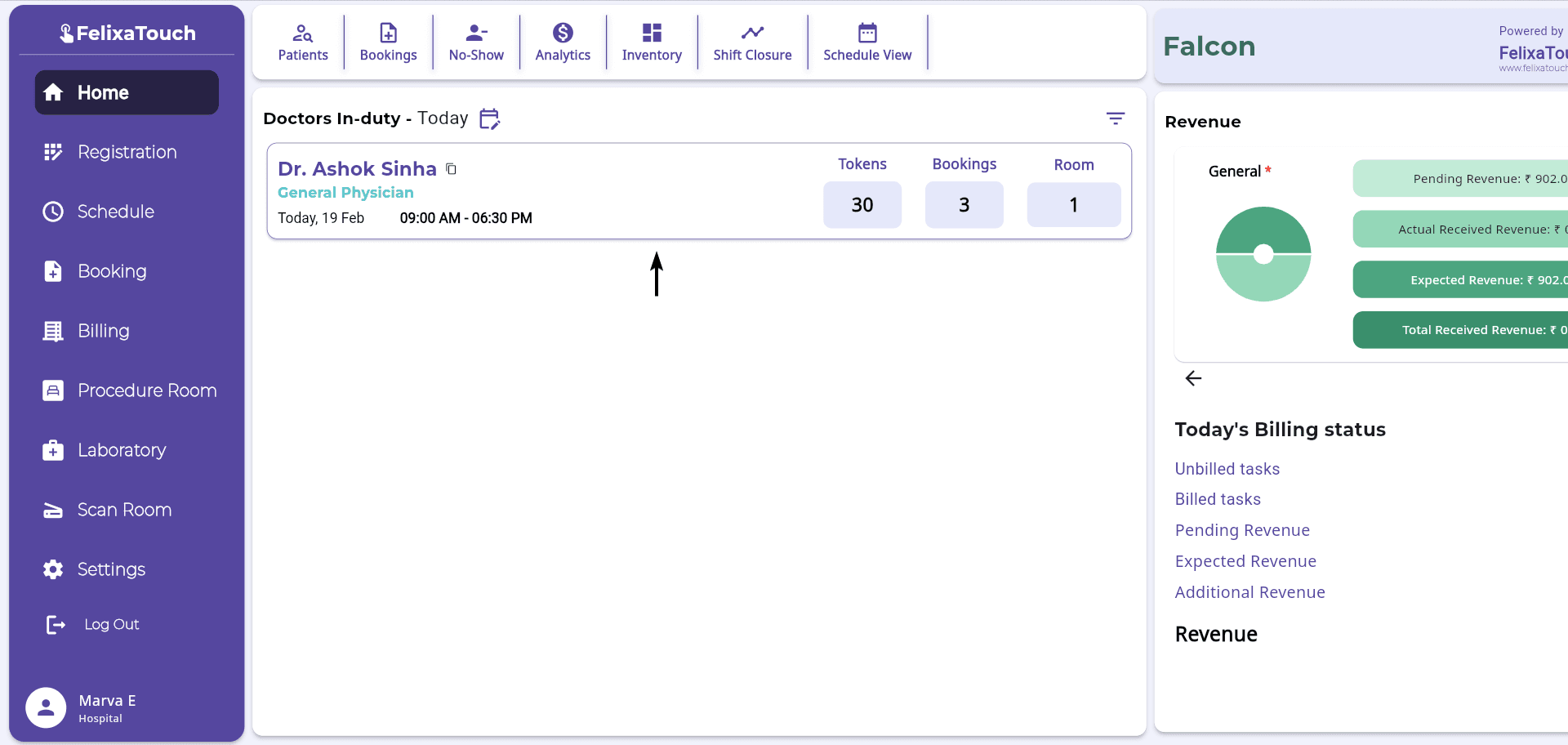
Screenshot 1: Dashboard showing doctor slot
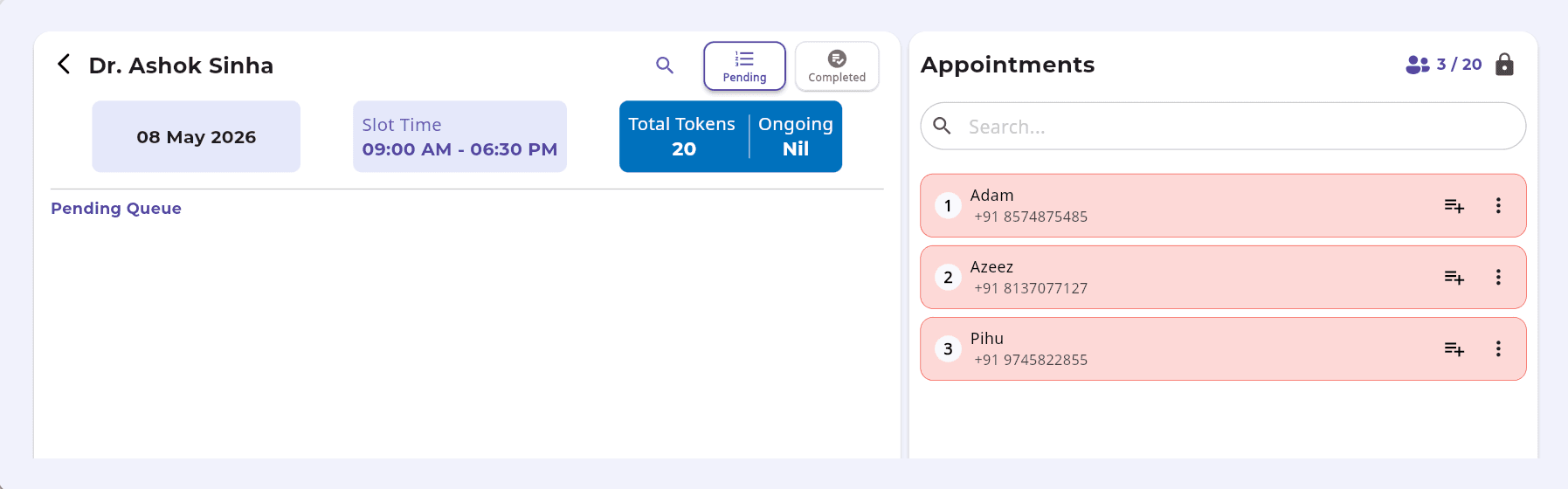
Screenshot 2: Pending Queue on the left and Appointment list on the right
Step 2: Manage Appointments from the Appointment List
From the Appointment List displayed on the right side.
Available Actions
- 1
Click on the "+" icon to move the patient to the pending queue.
- 2
Click on the three dots corresponding to each patient name .
Three-Dot Menu Options
- Cancel Appointment – Cancel the scheduled appointment.
- Reschedule Appointment – Change the appointment date or time.
- Add Vitals – Add or update the patient's vital information.
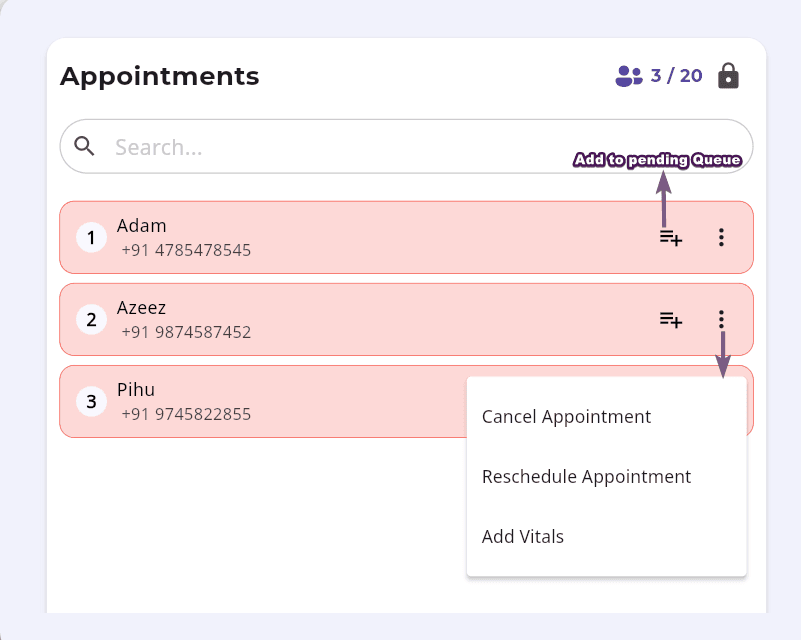
Screenshot 3: Appointment list options
Step 3: Confirm & Move Patients to Live Queue
Before adding a patient to the queue.
Before Adding to Queue
- Confirm the patient has physically arrived at the clinic.
- Drag the patient from the appointment list (right side) to the Live Queue (left side).
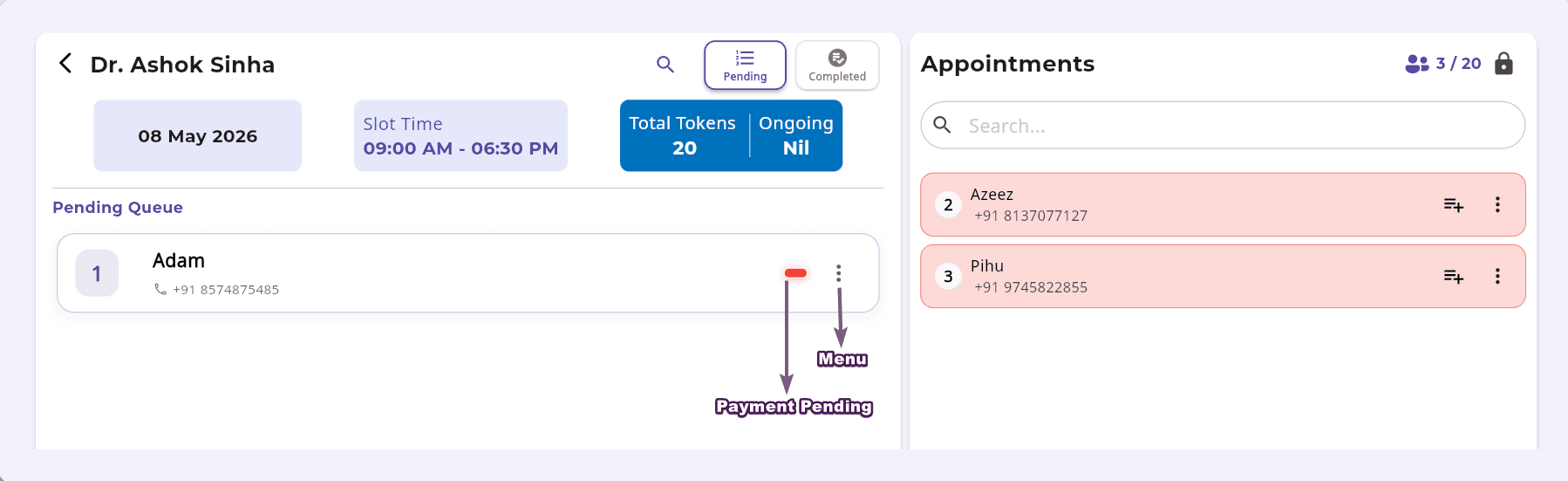
Screenshot 4: Queue panel with icons
Payment Status — Colour Indicators
Red
Payment pending
Green
Payment completed
Step 4: Patient Management from the Queue Panel
A three-dot menu is available beside each patient in the queue. Clicking it opens a full set of management options directly from the Queue Panel.
Available Queue Panel Options
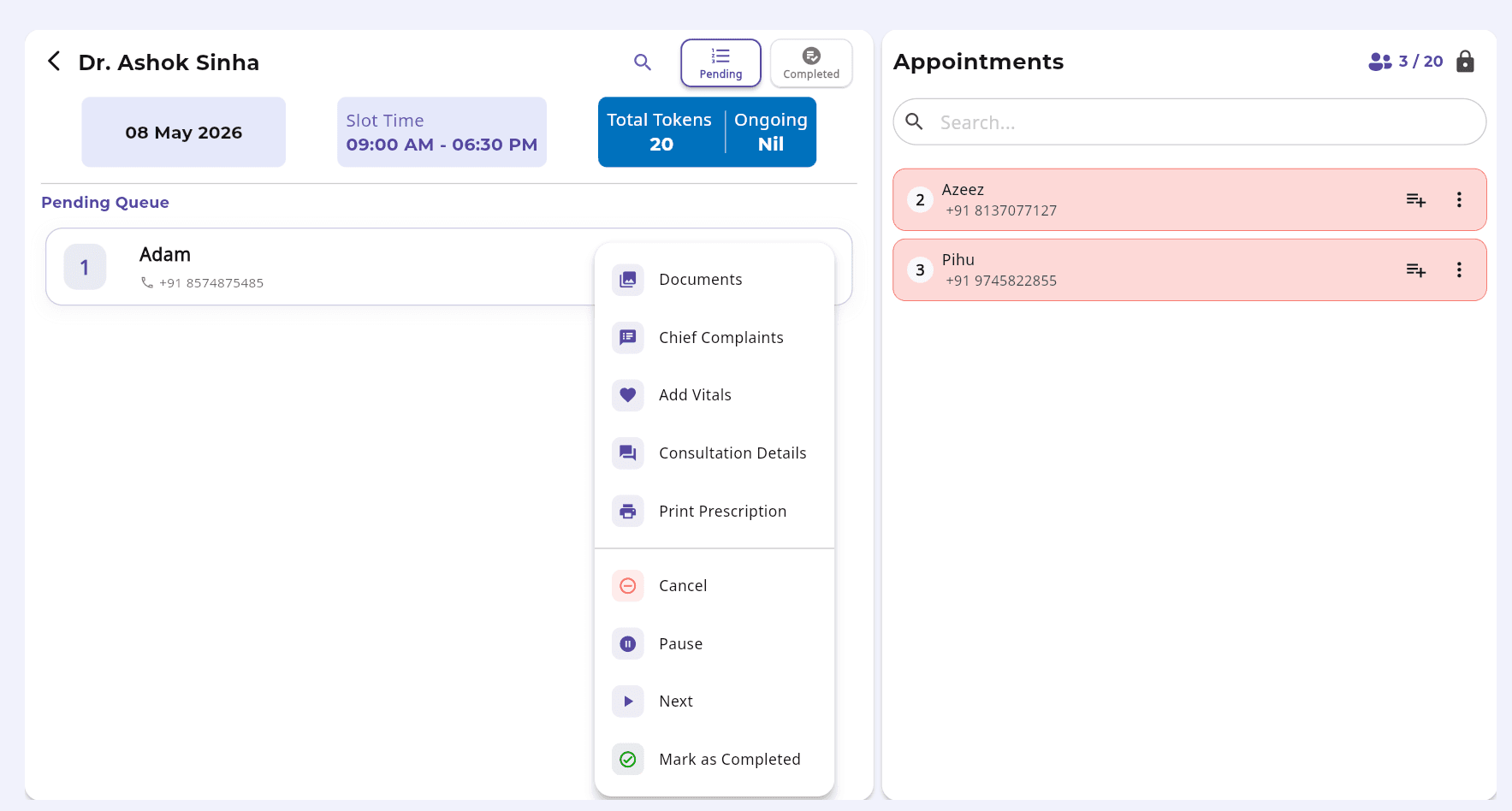
Screenshot 5: Queue panel with icons
Three-dot menu reveals full patient management options from the queue
These icons can be updated by:
Live Queue Updates in Real Time
- When a doctor clicks Start Consultation, queue status updates automatically.
- Consultation flow becomes visible to the entire clinic team.
- Congestion is reduced without manual coordination.
- A patient can be removed from the queue by dragging back to the appointment list .
Doctor-Specific Queue Access
Doctors can view the Live Queue by clicking the "Show Queue" icon near the Add Booking option.
Important Rule
Doctors can start consultations only for patients already in the queue.
This ensures:
- Proper front desk coordination
- Accurate patient sequencing
- Zero consultation confusion

Screenshot 6: Doctor dashboard with Show Queue icon
Doctors access the live queue via the "Show Queue" icon near the Add Booking option
Doctor-Initiated Appointment Flow
If the booking is created by the doctor, the flow is simple and structured:
- 1
Register and confirm the booking.
- 2
Go to Queue Management.
- 3
Drag the patient into the Live Queue.
- 4
Click Start Consultation from the home page.
Simple. Structured. Controlled.
Why Clinics Choose FelixaTouch for Queue Management
Real-Time Queue Visibility
Live status updates visible to the entire clinic team
Role-Based Access
Admin, Doctor, Nurse, and Front Desk each have controlled access
Drag-and-Drop Simplicity
Move patients to the queue with a simple drag gesture
Integrated Vitals & Prescription Tracking
Manage vitals and prescriptions directly from the queue
Automated Status Updates
Queue changes reflect instantly across all roles
Faster Patient Throughput
Reduced waiting room congestion and optimized flow
The Outcome
Conclusion
Queue management is not just a feature. In a busy clinic, it defines workflow efficiency.
With FelixaTouch Live Queue Management, your clinic doesn't just manage patients — it manages time, coordination, and productivity in one intelligent system.
Ready to Optimize Your Clinic's Patient Flow?
Experience the power of real-time live queue management with FelixaTouch. Book a free demo today and see how we can transform your clinic's consultation workflow.